
SOH Stage Studio – guide to the Stagelights.cz app for equipment rental
SOH Stage Studio on stagelights.cz is the online catalogue of our lighting, sound and stage equipment rental with an AI assistant. Choose the equipment yourself or with the AI chat, see the price for your whole rental period straight away, have a lighting preview rendered right into a photo of your venue and send the inquiry from the app. No registration, in a desktop or mobile browser.
Gemini shows the selected equipment right in a photo of your venue – just one click.
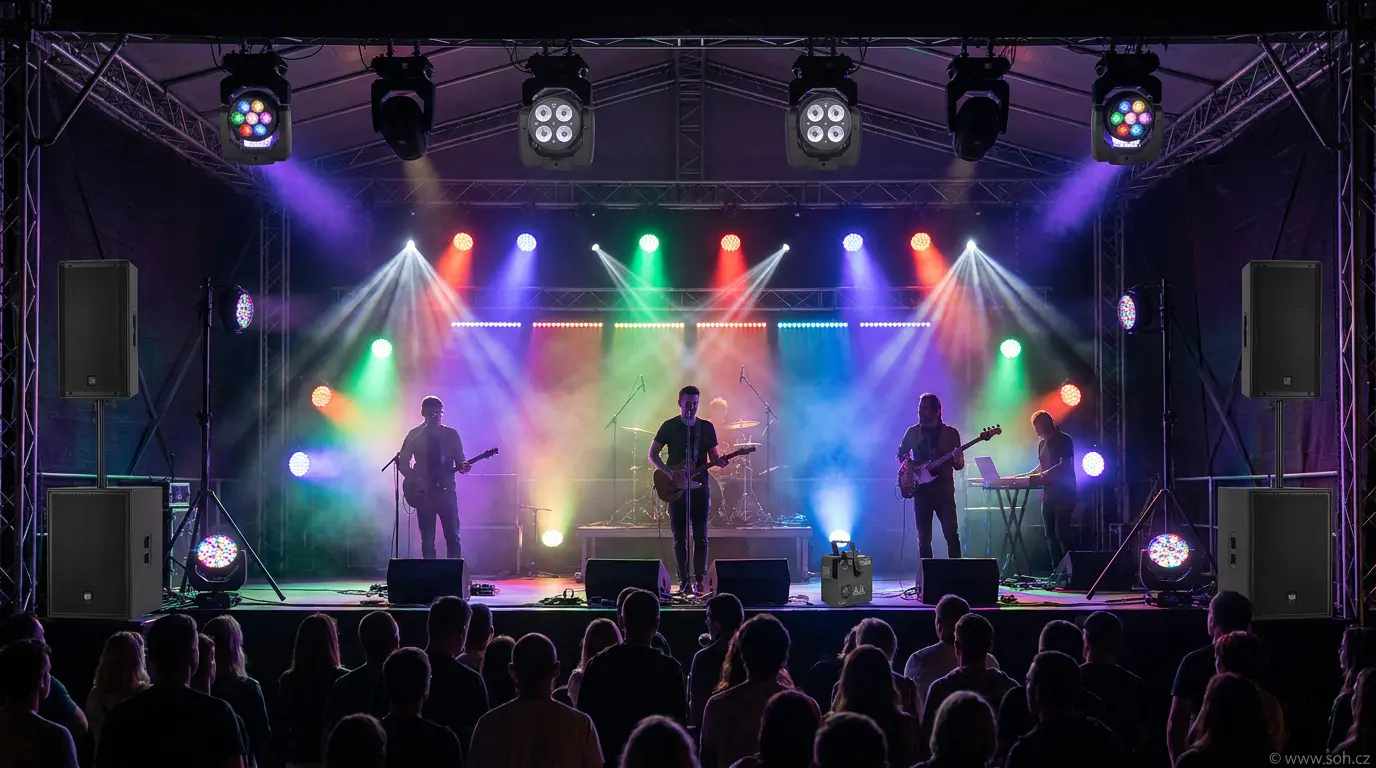
Video guide: from the AI chat to a sent inquiry
In under two minutes you will see the whole process on a wedding example: the AI chat picks the lights and adds them to the list with the price, a lighting preview is generated into a photo of the venue and the inquiry is sent from the chat together with the visualization.
The video has no sound and its captions are in Czech. The venue photo and the preview in the video are sample AI visualizations · Open on YouTube
Quick start: from selection to inquiry
- Choose the equipmentIn the catalogue, from a ready-made setup for a wedding, ball or company party, or describe your event to the AI chat.
- Enter your datesIn the My list panel, adjust the quantities and enter the rental period. The price for the whole period is calculated straight away.
- See a previewThe AI visualization renders your setup, optionally right into a photo of your venue.
- Send the inquiryFrom My list with the Rent button, or from the AI chat. The rental team checks availability and gets back to you.
1. Catalogue and equipment search
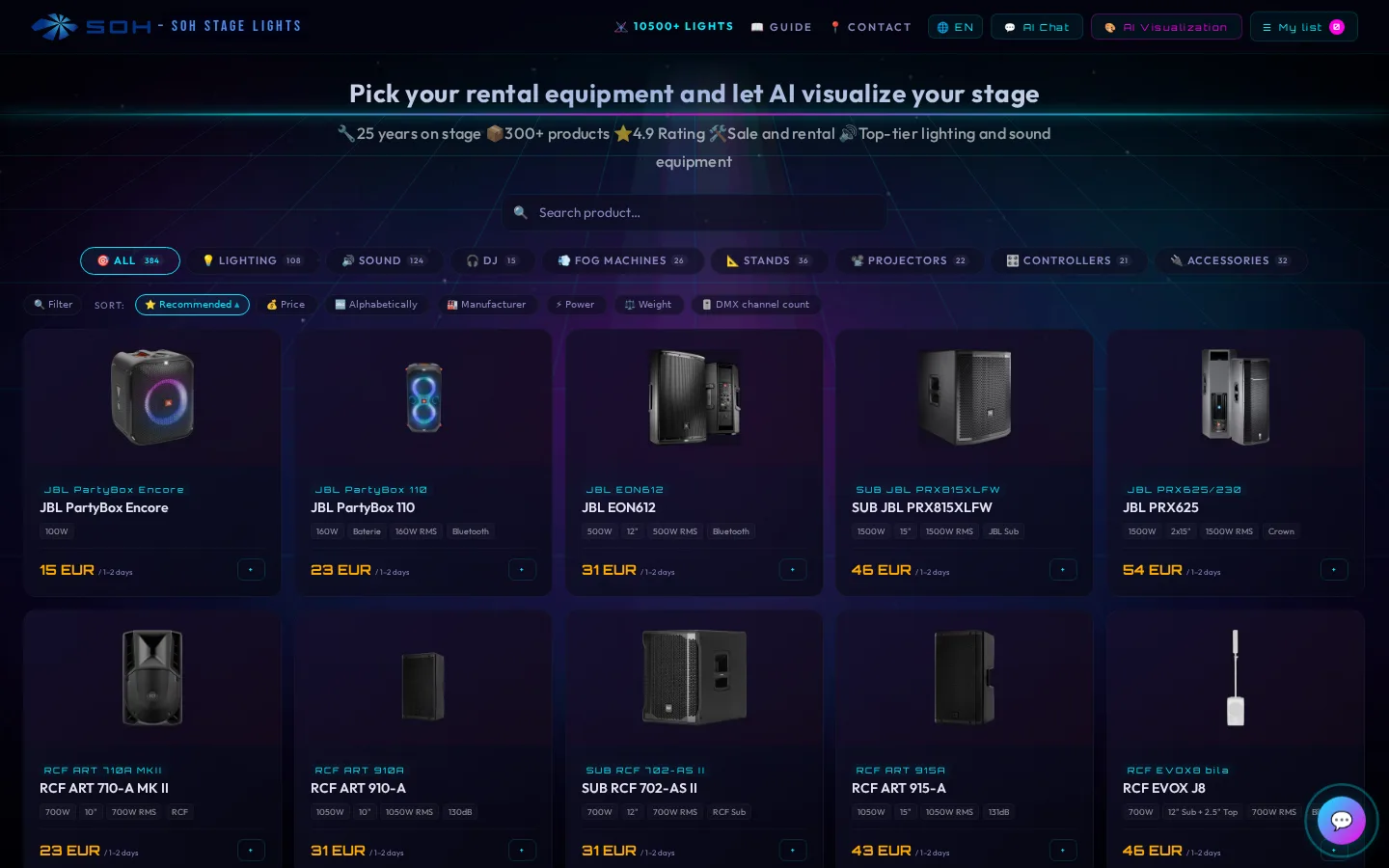
The catalogue contains the equipment we rent out, divided into Lighting, Sound, DJ, Fog Machines, Stands, Projectors, Controllers and Accessories. You can search by name, narrow the results by parameters with Filter and sort by Recommended, Price, Alphabetically, Manufacturer, Power, Weight or DMX channel count. Each card shows the rental price for 1–2 days and a + button to add the product to My list. The English version shows prices in EUR.
2. Product detail
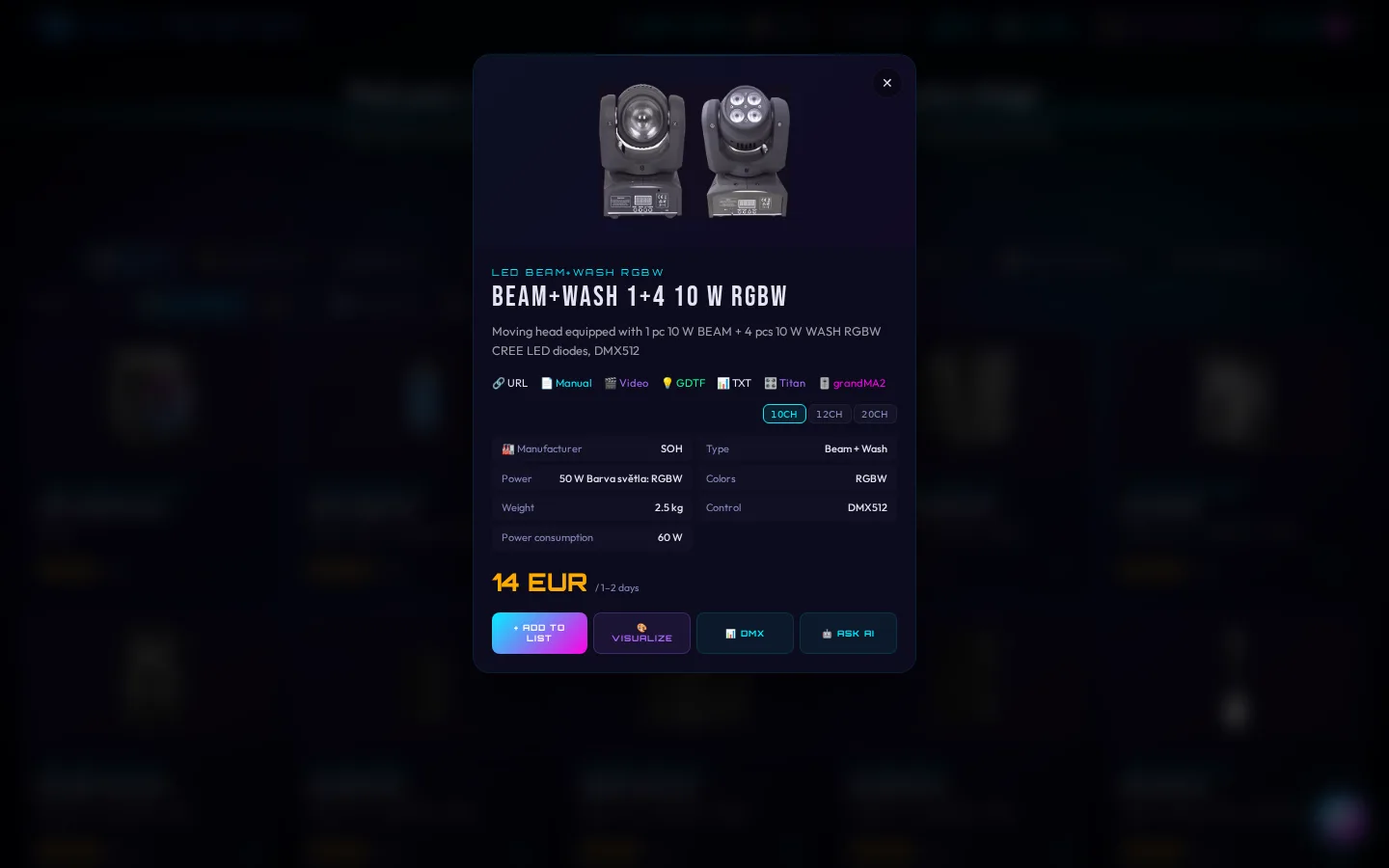
Clicking a card opens the detail with a description, specifications, the number of units in stock and the price. Lights come with links to the manual and to files for lighting consoles (GDTF profile, DMX chart TXT, Avolites Titan and grandMA2 profiles), and for lights with several DMX modes you choose the mode. From the detail you can add the product to your list, start a visualization, show its DMX channels or ask the AI.
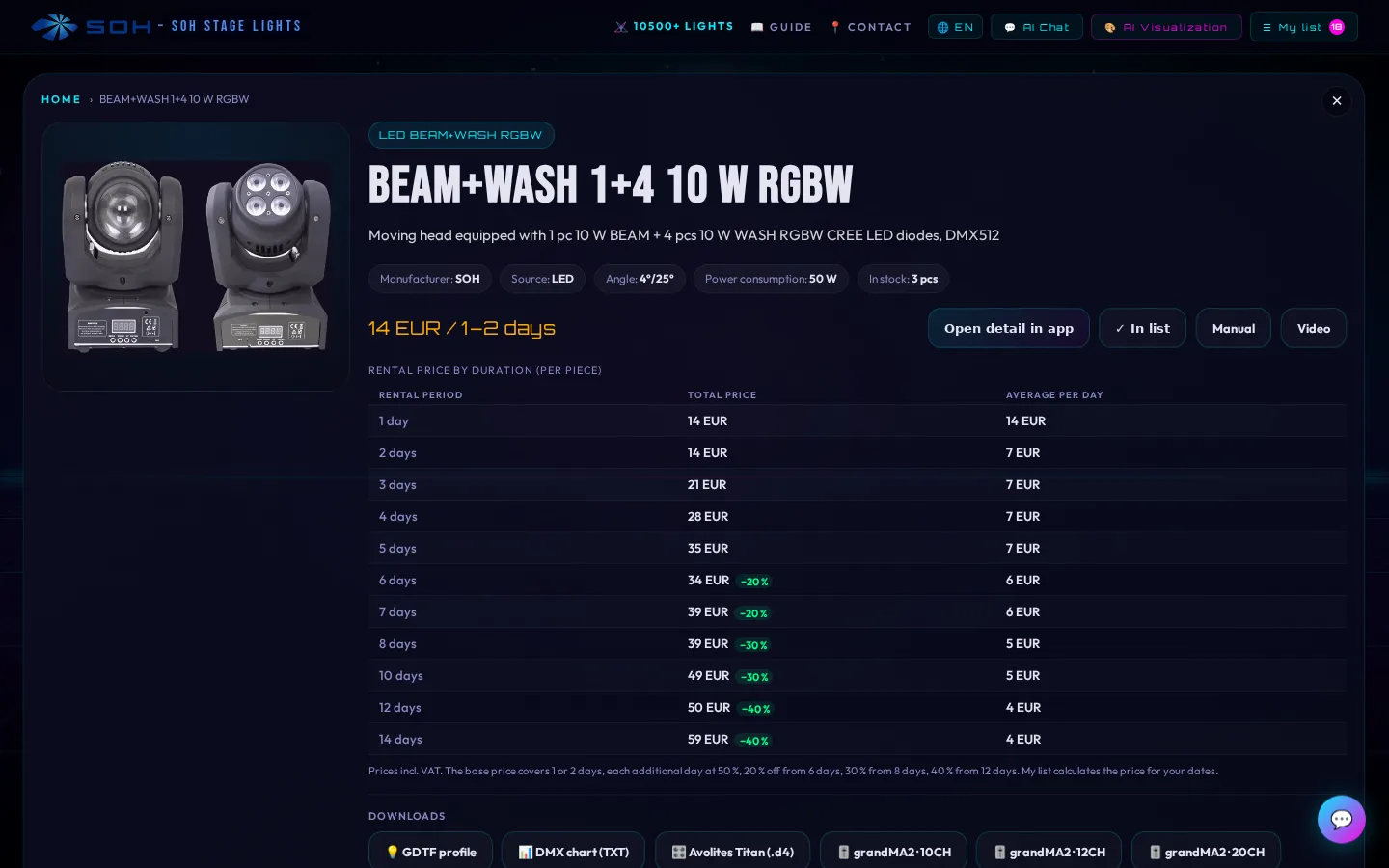
Every product also has its own page (for example stagelights.cz/en/product/…) with a price table by rental length, downloads and similar products.
Ready-made setups for weddings, balls and company parties
Not sure where to start? The pages wedding, ball and school prom and company party (currently in Czech only) offer a small, a medium and a larger sample setup made of catalogue items, with the price for 1–2 days. The button Otevřít sestavu v košíku (open the setup in the cart) moves the setup to My list, where you adjust the quantities and dates, or you can send an inquiry straight away with Poptat. A sample setup is not a package with a special price; its price is the sum of the list prices of the items.
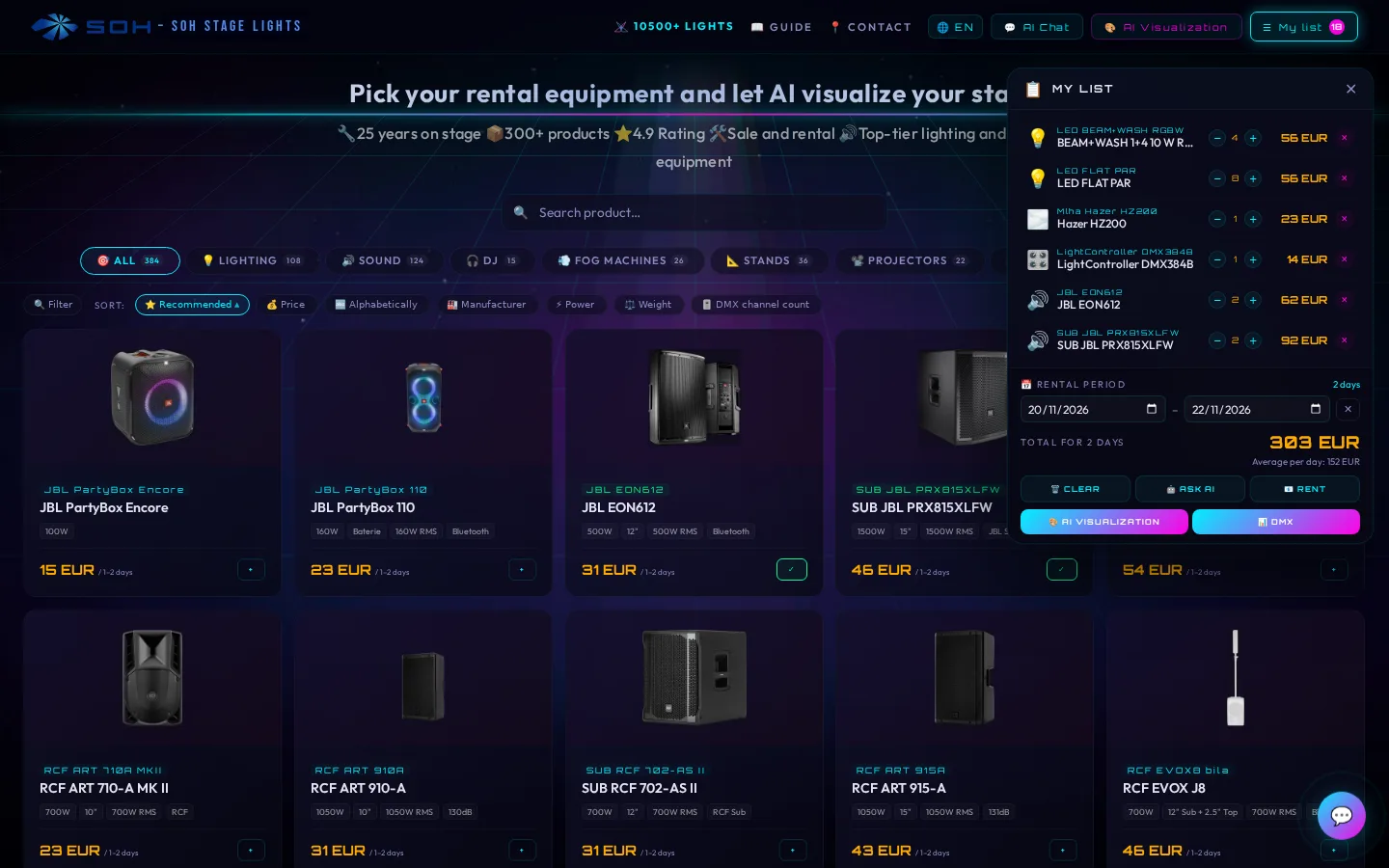
3. My list: quantities, dates and price
Open the My list panel with the button in the top right corner. For each item you can change the quantity with the − and + buttons or remove it. Once you enter the Rental period, the app calculates the price for the whole period and the average per day. Your browser remembers the list, so you can come back to it later. From the panel you continue to AI visualization, DMX, Ask AI or the inquiry (Rent).
| Rental length | Price |
|---|---|
| 1 or 2 days (up to 56 hours) | base price |
| each additional day | + 50 % of the base price |
| from 6 days | 20 % off |
| from 8 days | 30 % off |
| from 12 days | 40 % off |
Prices in the app include VAT and already include a 10 % discount for online booking. Cables and adapters for the equipment are lent free of charge. Transport and installation are quoted individually by the rental team.
4. Rental inquiry
You send the inquiry directly from Stage Studio, without copying the list or prices anywhere. There are two ways:
- From My list: click Rent. Send yourself opens a pre-filled message to SOH rental (pronajem@soh.cz) in your e-mail program with the items, quantities, dates, prices and a link to your list. Check via AI has the inquiry checked and sent by the AI assistant.
- In the AI chat: below the suggested setup, use the button to send the inquiry. The AI asks for your e-mail and dates, attaches your visualizations and passes the inquiry on to our rental team. A copy is sent to your e-mail.
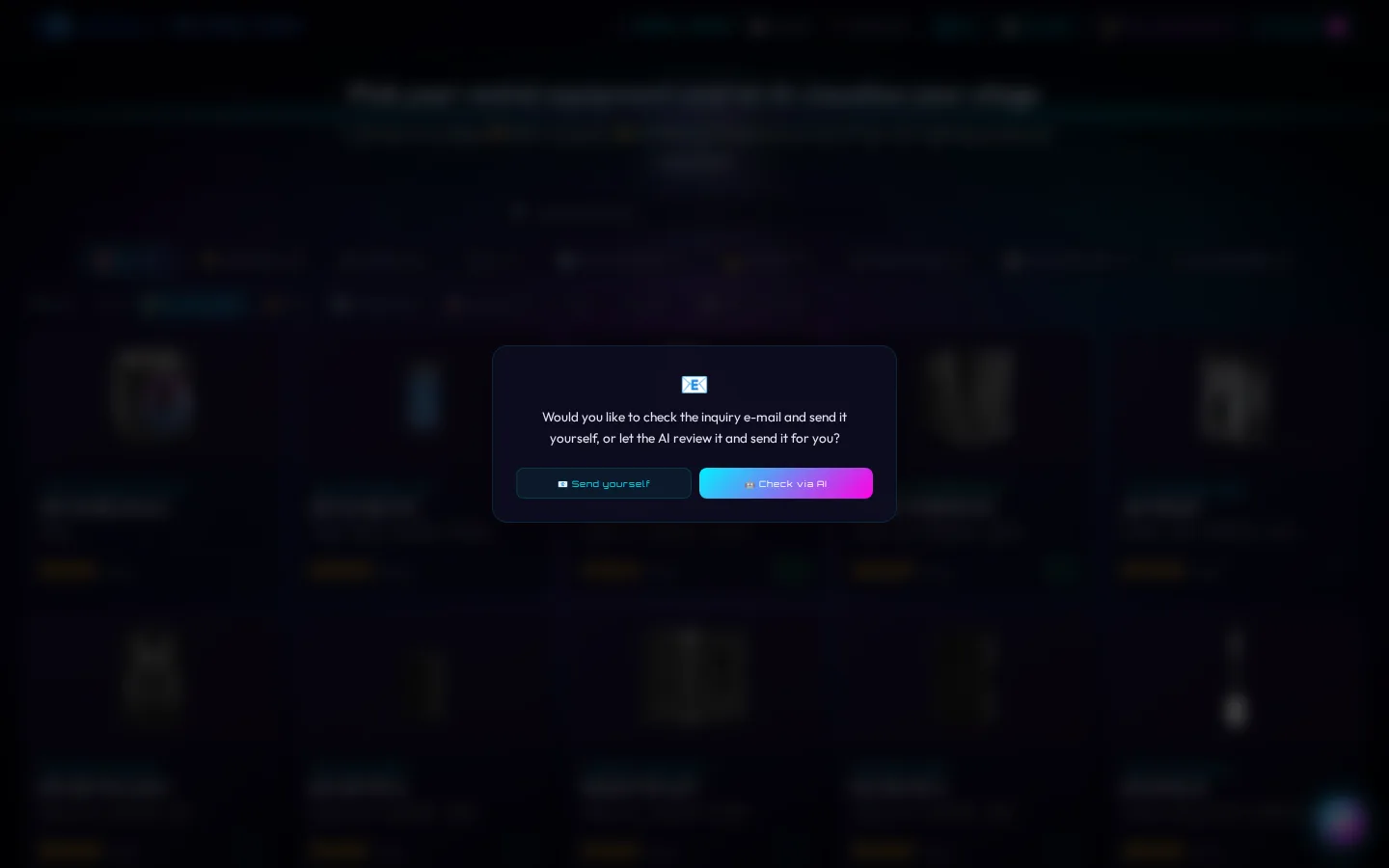
What happens next? An inquiry is not yet a binding reservation. Our rental staff check it personally, verify that the equipment is available for your dates and get back to you with a confirmation. After you send an inquiry through the AI chat, your daily limit of AI visualizations also increases.
5. AI stage visualization
The AI Visualization button renders the equipment from your list. You choose the scene type (Concert, Festival, Club, Theatre, Corporate, Wedding, Photomontage, Social media and, for images, also Datasheet, Wiring diagram, Equipment and Stage plot), the AI model and the resolution. The prompt is built from the selected products and you can edit it. Images are created by Google Gemini (Nano Banana, or Nano Banana Pro for the highest quality) based on real photos of the equipment from our warehouse, short videos by Veo 3.1 models.
Lighting preview in a photo of your venue
In the AI visualization panel, upload a photo of your venue (JPG or PNG). The AI then places the lights and sound from your list right into your space. A photo taken from where the guests will be, showing the whole dance floor and the walls, works best. Your own photo is supported by the Gemini / Nano Banana models.
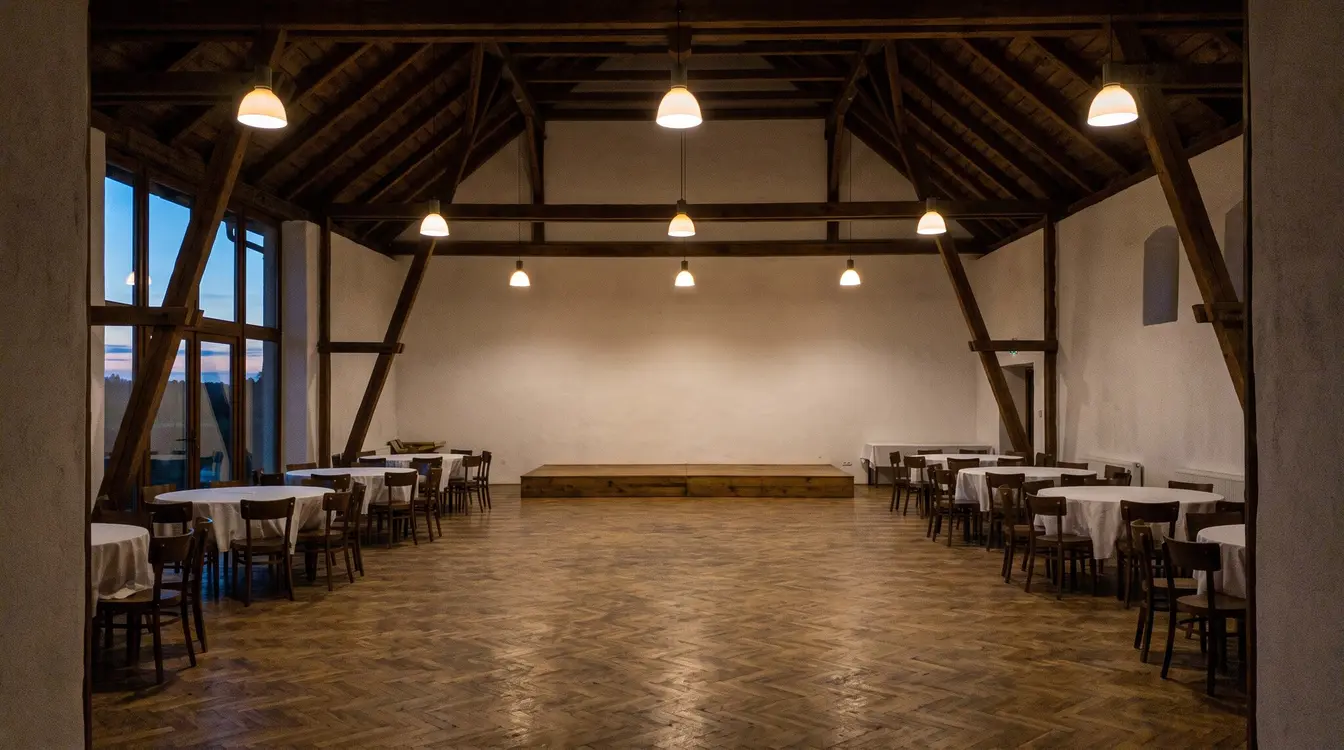
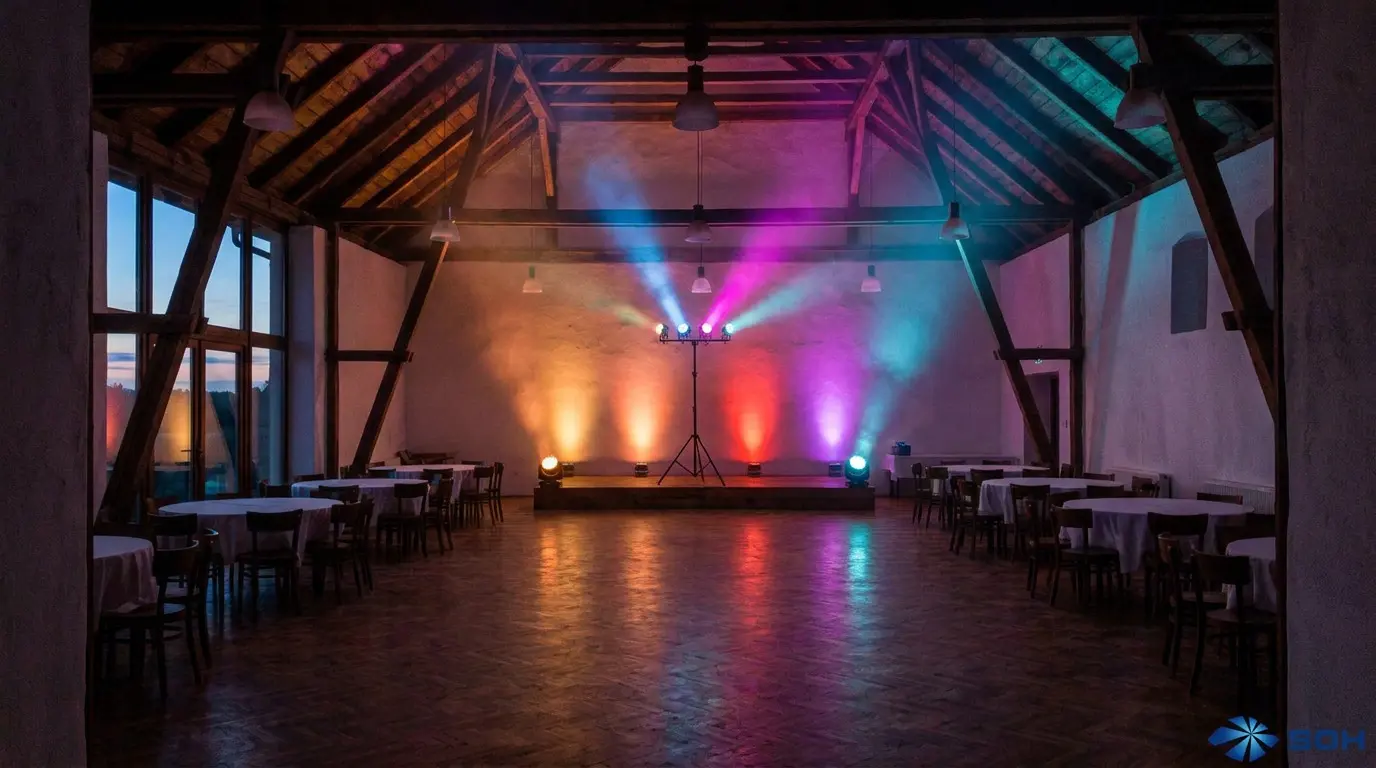
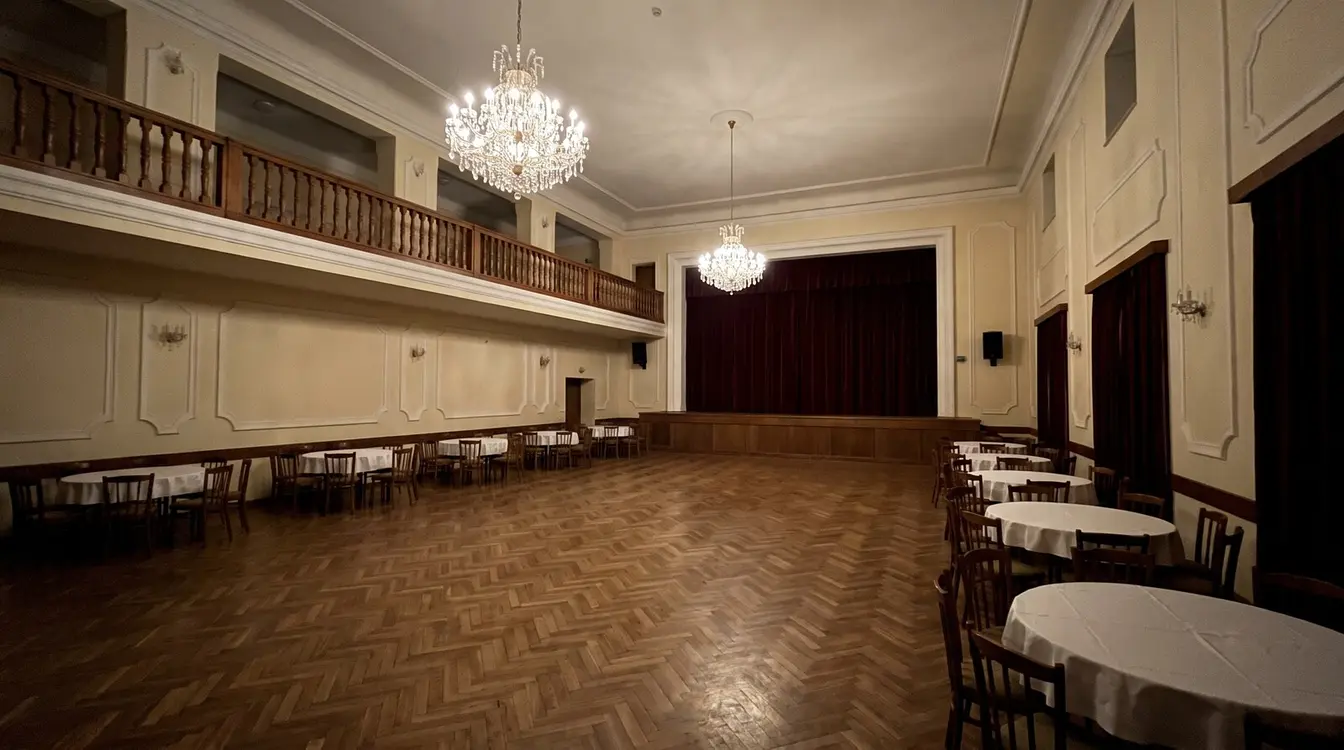
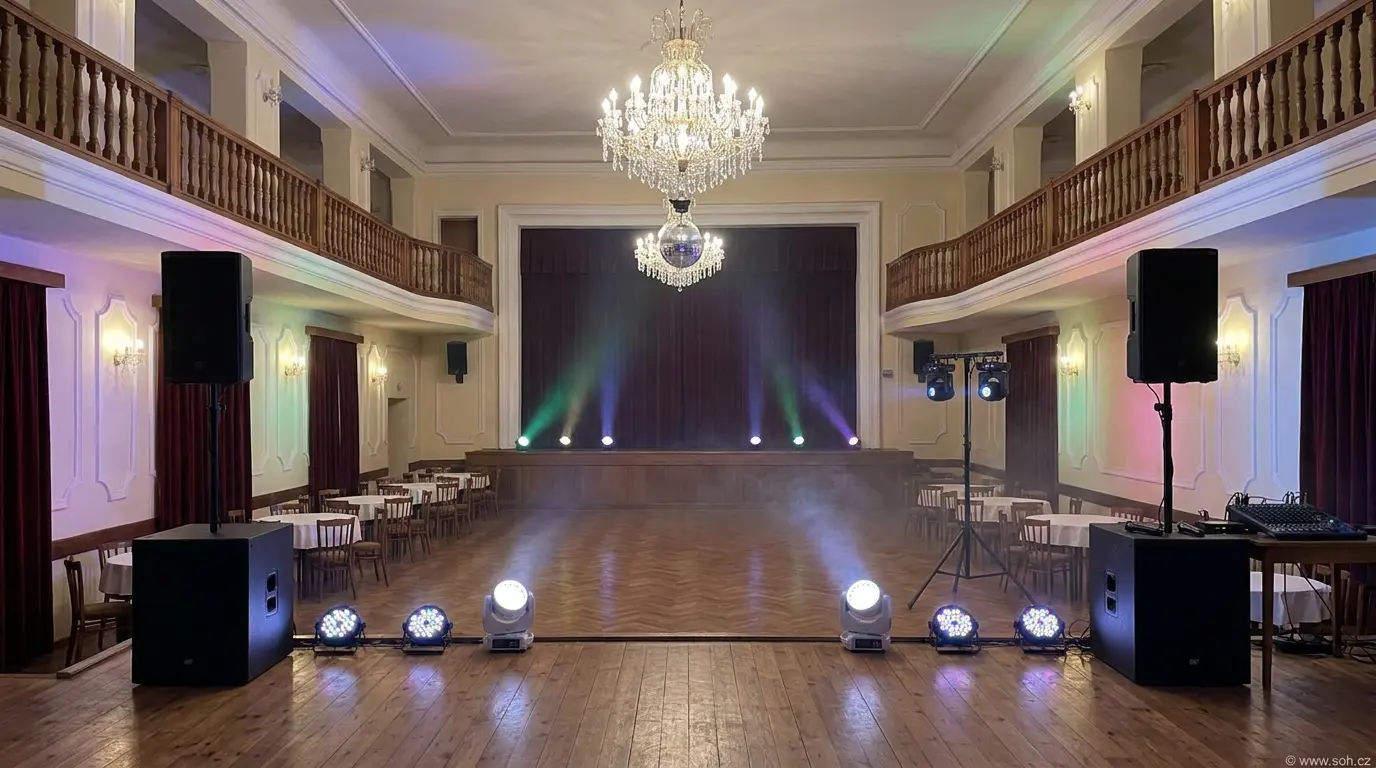
The venue photos and previews on this page were created by AI as examples. With your own photo, the preview shows your real venue.
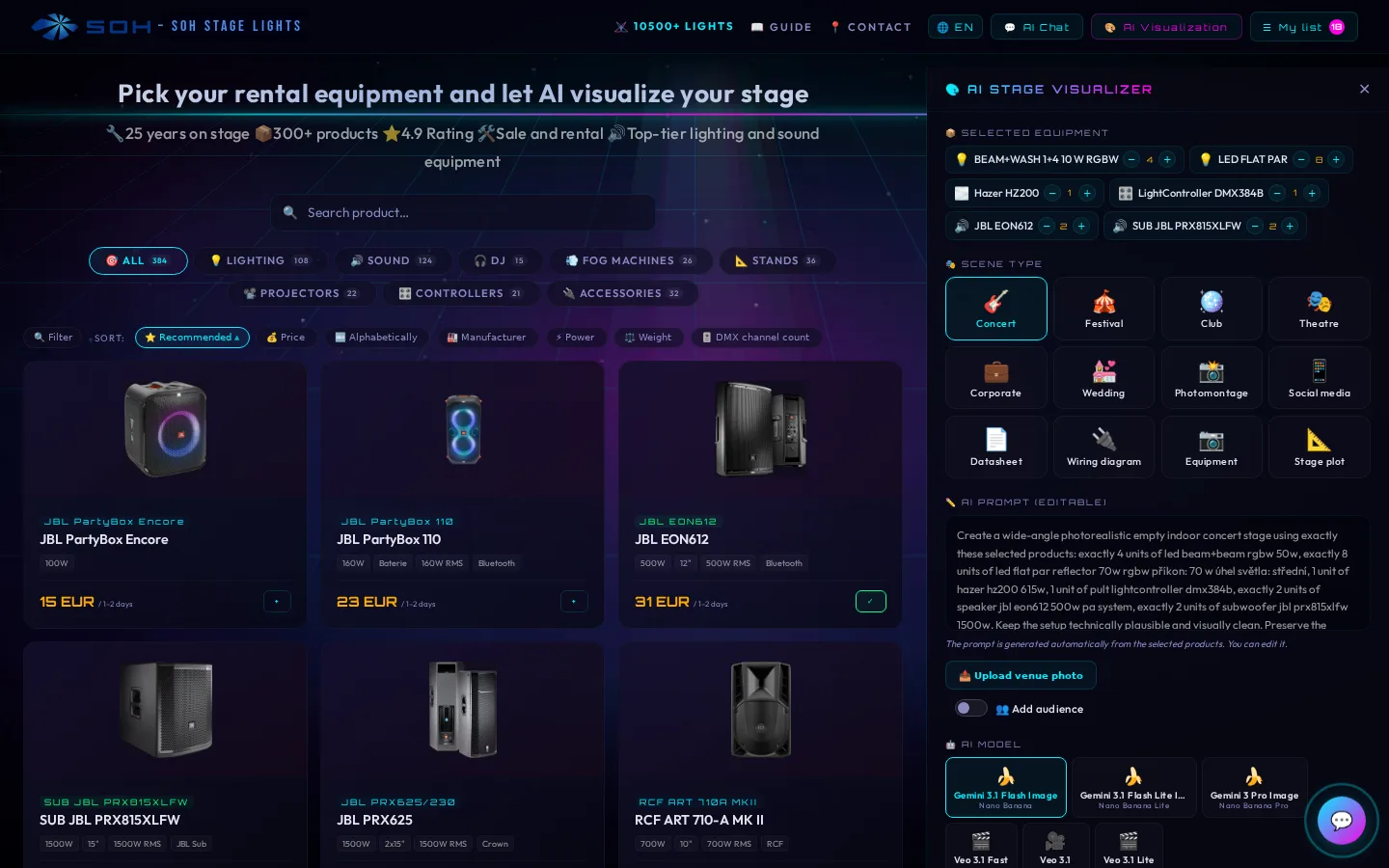
Generation has a daily limit; the panel shows the current status. The result is an AI illustration of your setup, not a technical drawing: take the number and placement of the lights as an idea, we will fine-tune the actual layout with you.
6. AI chat
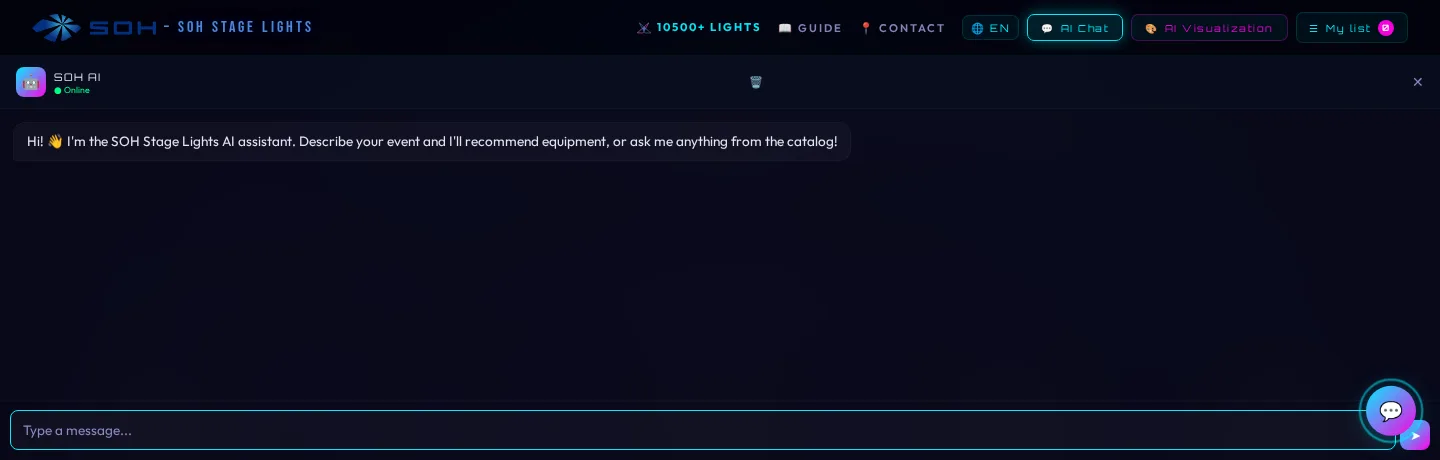
The AI Chat button opens the SOH AI assistant. Describe your event and venue, for example “wedding for 80 guests in a 15 × 10 m hall with wooden beams”. The assistant suggests equipment from the catalogue and explains what each item is for. If you ask it to add the equipment right away, a box with the added items, the price and buttons to edit the list and send the inquiry appears below the answer. It also answers questions about products, DMX or connections. The bin icon clears the conversation.
7. DMX patch list
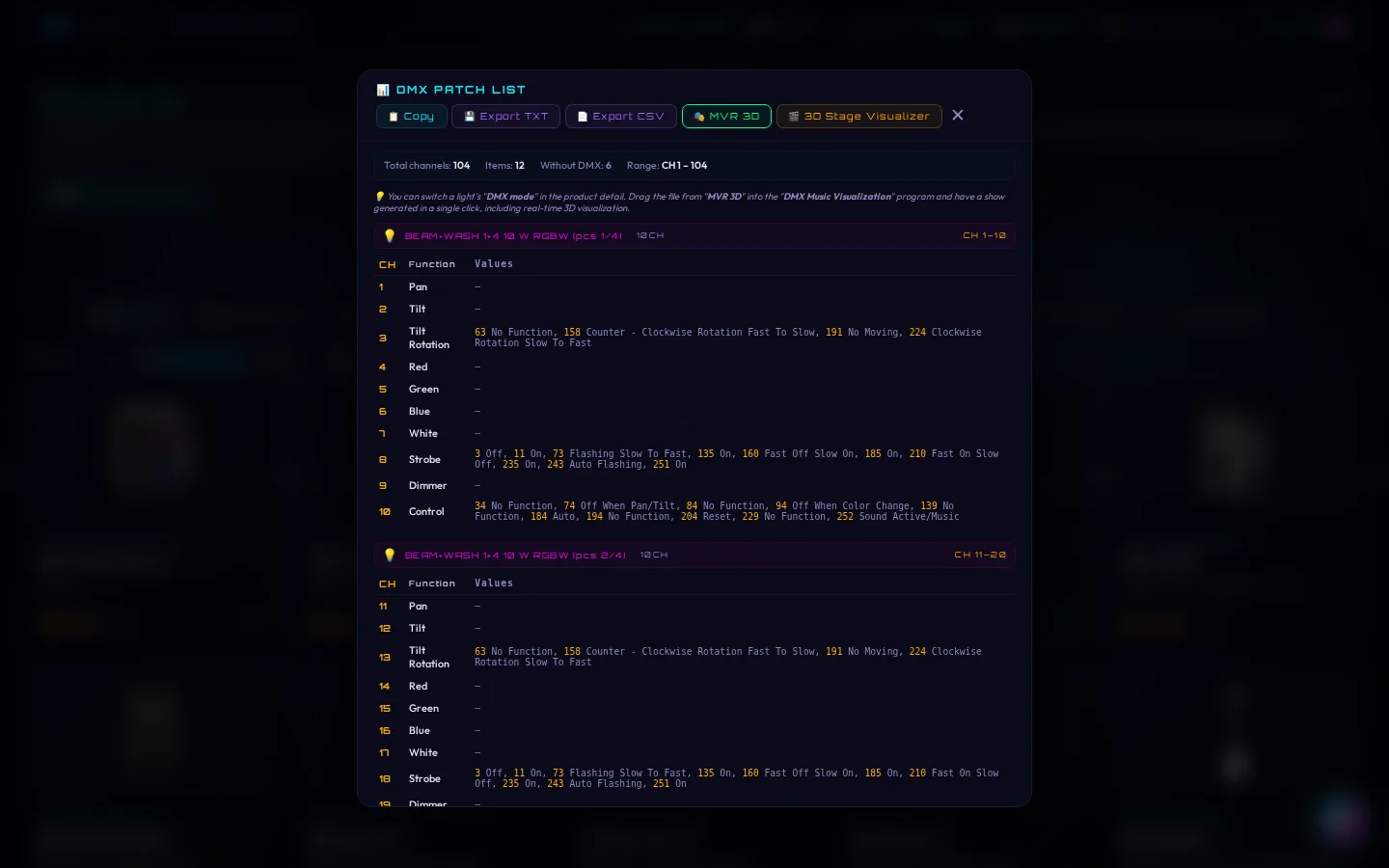
The DMX button in the list opens the DMX patch list of the whole setup: the total number of channels, the address range and, for each light, the addresses according to its order in the list and the selected DMX mode (for example CH 1–10 for the first unit and CH 11–20 for the second), including the channel functions. Copy the patch list to the clipboard or export it to TXT or CSV. From here you can also go to the MVR 3D scene export and the 3D Stage Visualizer.
8. MVR 3D scene and 3D Stage Visualizer
The MVR export page builds a 3D scene from your list and saves it as an .mvr file for visualization and lighting software (for example grandMA3, Capture or WYSIWYG). You choose the placement, the stage and structure, the order and DMX, and the target program; a live preview shows the perspective and the plan view. Lights with a GDTF profile are placed in the scene.
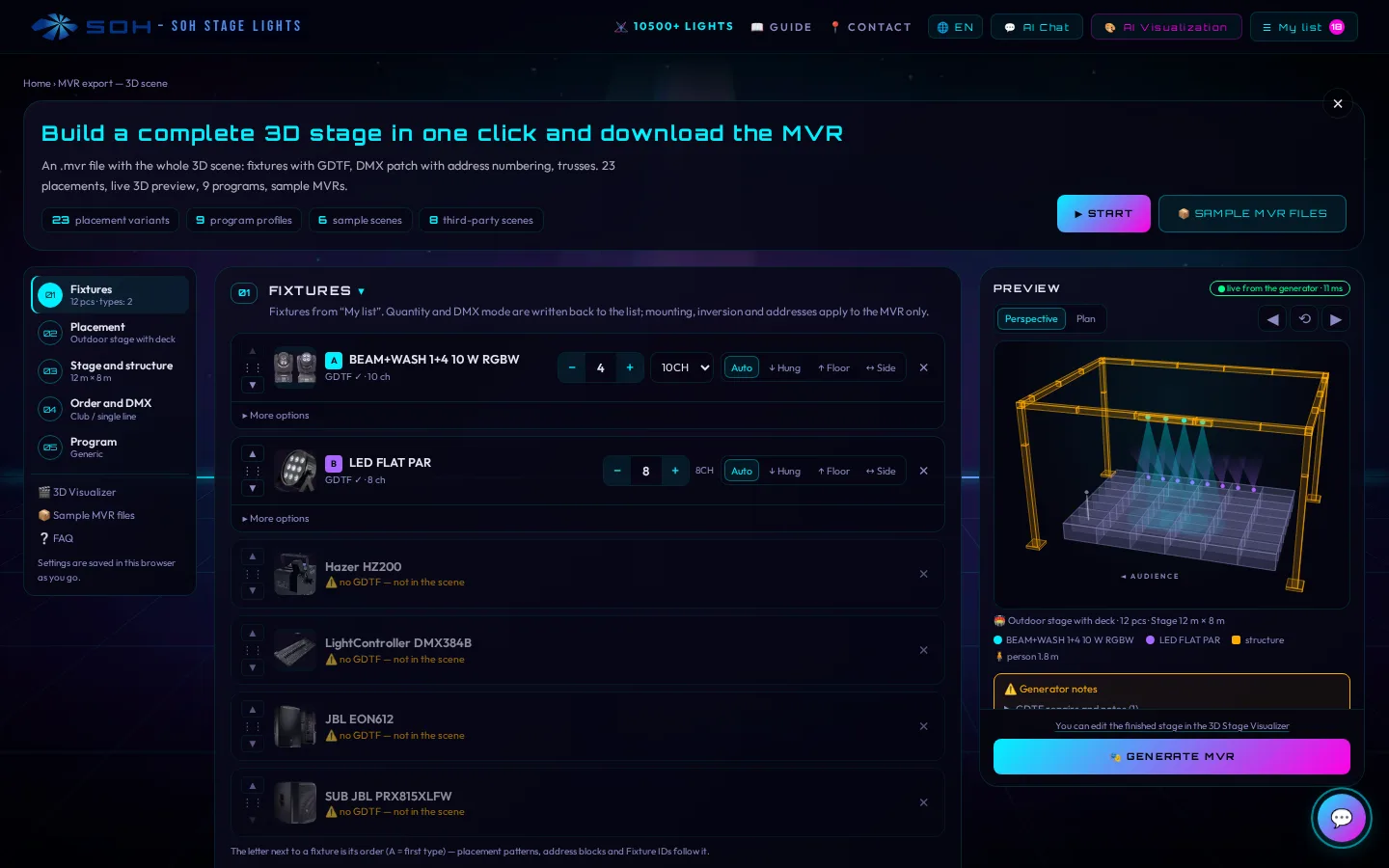
Open the finished MVR file in the 3D Stage Visualizer app for Windows. It renders the light show in 3D in real time; you switch the lights on with the mouse or connect them to a console via Art-Net or sACN. The free version can display, edit and save.
The video has no sound and has English captions · Open on YouTube
Sharing a setup by link
The inquiry e-mail contains a link that opens the same list. You can send the link to colleagues or a technician. A setup can also be written directly into the address:
https://stagelights.cz/en/?cart=LEDFLATPAR:4&od=2026-11-20&do=2026-11-22– a list with 4 units of LED FLAT PAR and the rental dates,…&viz=1– opens the AI visualization after the list loads,https://stagelights.cz/en/?product=LEDBEAMWASHRGBW– opens the product detail.
Separate several products with a comma, for example cart=LEDFLATPAR:8,JBLEON612:2.
For developers and AI agents: the API and MCP connection (equipment catalogue, MVR 3D scene generation) is described in one place: stagelights.cz/en/api.
What you gain when renting
- The price in advance: you see the price for your whole rental period before the inquiry, including discounts for longer rentals.
- A picture before the equipment arrives: the AI preview in a photo of your venue shows you and your client what the event can look like.
- An accurate inquiry: items, quantities, dates, visualizations and the link to the list go into the inquiry automatically.
- Documents for technicians: DMX addresses, console profiles and the MVR 3D scene are ready in advance.
- One setup for everyone: the same link opens the list for you, your colleagues and us at the rental.
FAQ
Do I need to register?
No. The app works without logging in and your browser remembers the list.
How do I send an inquiry?
In the My list panel, click Rent and choose Send yourself or Check via AI. In the AI chat, use the button to send the inquiry below the suggested setup.
Is the inquiry binding?
No. The rental team checks the inquiry, verifies that the equipment is available for your dates and gets back to you with a confirmation.
Can I have the lights rendered into a photo of my venue?
Yes. Upload a photo of your venue in the AI visualization and choose the Gemini / Nano Banana model. The result is an AI illustration, not a technical drawing.
How is the price calculated?
The base price applies to 1 and 2 days (up to 56 hours). Each additional day costs 50 % of the base price. From 6 days there is 20 % off, from 8 days 30 % and from 12 days 40 %. Prices include VAT. My list calculates the price for your dates.
Can I change the DMX addresses?
The DMX patch list assigns addresses one after another according to the order in the list and the selected DMX mode. For your own split, use the CSV export or the Order and DMX step in the MVR export.
What if a product has no GDTF profile?
The product stays in the list and in the inquiry. Only lights with a GDTF profile are placed in the MVR 3D scene.
Try it for your own event
Choose the equipment, enter your dates and send the inquiry from Stage Studio. We are also happy to advise you in person: SOH rental, Antala Staška 242/14, 140 00 Praha 4, Czech Republic · tel. +420 272 272 501 · pronajem@soh.cz


